Salesforce Integration
The Salesforce integration brings Alium buyer intelligence directly into your Salesforce org. Your reps see the interview Alium has done with a buyer at a company right on the Account and Opportunity pages they already work in, and an Alium Has Intel field flags every account where Alium has talked to a buyer — so it's filterable, reportable, and visible at a glance.
The integration has three parts:
- In-Salesforce intel panel — an embedded Alium view on Account and Opportunity pages that shows the Quick Study, tech stack, strategic priorities, and full transcript from a buyer at that company (when Alium has one).
- Account fields — Alium writes its intel directly onto matched Accounts: an
Alium Has Intelcheckbox, interview counts, in-market tags, interviewee roles, strategic priorities, the account's tech stack, and a link back to the Alium account page (package v1.6+). Everything is filterable, reportable, and usable in list views and workflows. - New-interview alerts — when Alium publishes a new interview for one of your accounts, Alium can email the Salesforce account owner.
Setup has two roles: a Salesforce admin installs the managed package once, and each end user authorizes Alium the first time they open the panel.
For Salesforce admins
Before you install
Reach out to your Alium contact (or help@alium.io) and share your Salesforce instance URL before installing. Alium needs it to register your org with the connected app.
Install the package
Install the Alium managed package from app.alium.io/salesforce/install (always points at the latest version; add ?sandbox=1 to install into a sandbox).
The managed package contains:
| Component | Parent object | Type |
|---|---|---|
| Alium | — | Connected App |
| Alium | — | Aura Component Bundle (the embedded panel) |
| Alium Data | Account | Field Set |
| Alium Integration Fields | — | Permission Set |
| Alium ... (11 fields, listed below) | Account | Custom Field |
Custom fields created
| Field | Type | Purpose |
|---|---|---|
Alium Has Intel | Checkbox | TRUE when Alium has interviewed a buyer at this account |
Alium Latest Interview Date | Date | Date of the most recent Alium interview for this account |
Alium Company ID | Number | Alium's internal company identifier used for matching (its presence does not imply Alium has intel — only that the company exists in Alium's database) |
Alium Interview Count | Number | How many Alium interviews are available for this account (v1.6+) |
Alium Open To Intros Count | Number | Interviewed buyers currently open to intro requests (v1.6+) |
Alium In Market For | Text | What the account is in market for, from buyer interviews — great for list-view filters (v1.6+) |
Alium Interviewees | Text | Roles Alium has interviewed, e.g. "VP, Marketing; Director, Ops" (v1.6+) |
Alium Strategic Priorities | Long Text | Strategic priorities from the latest interview's Quick Study (v1.6+) |
Alium Tech Stack | Long Text | The account's tech stack — one line per product with satisfaction rating, status, and interview count (v1.6+) |
Alium Account URL | URL | Deep link to the account's page in Alium (v1.6+) |
Alium Last Synced | Date/Time | When Alium last pushed data to this account (v1.6+) |
The Alium Has Intel and Alium Company ID fields are required by the integration; the rest are optional. If a required field is missing, the integration can't run, so keep them in place.
Grant field visibility (v1.7+)
Salesforce does not grant field-level security on fields added by a package upgrade, so after installing or upgrading to v1.7, assign the included Alium Integration Fields permission set to every user (or profile-clone it) who should see Alium data. Without it, the fields exist but stay invisible — even in reports and list views.
Setup → Permission Sets → Alium Integration Fields → Manage Assignments.
On v1.6 the permission set is missing (it was left out of that package upload). Upgrade to v1.7 from the install link above, or create your own permission set granting read/edit on the
Alium ...Account fields.
Place the panel
Add the Alium Aura component to your Account and Opportunity Lightning record pages, wherever your reps should see it — we recommend a dedicated tab. The component is a simple iframe that renders the Alium web app for the account in context.
On an Opportunity page, Alium uses the parent Account's Website to find the matching company — so opportunities surface the same intel as their account.
For end users
Authorize Alium (first time)
The first time you open the Alium panel on an Account or Opportunity, you'll see an Authorize Alium button.
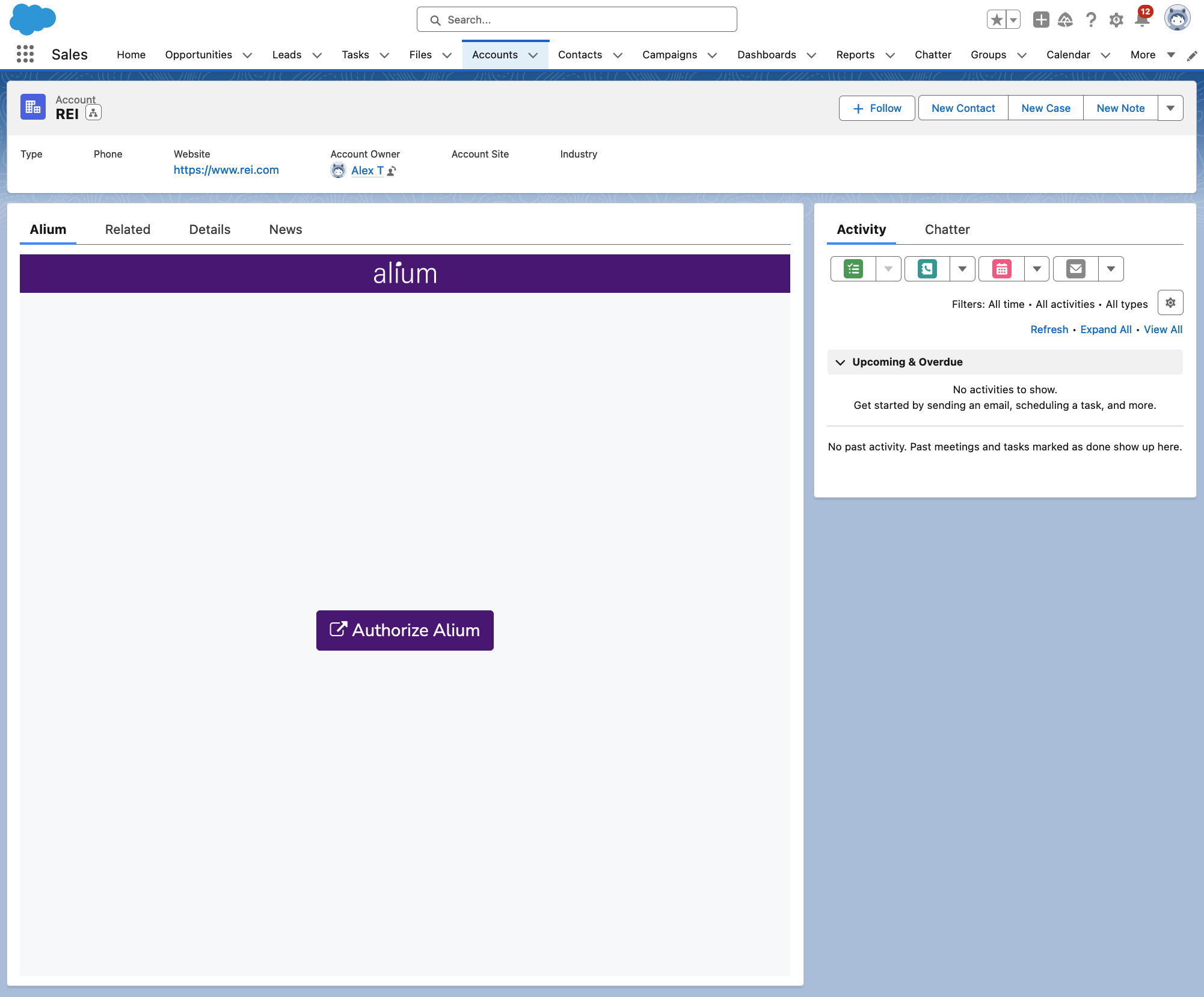
- Click Authorize Alium.
- A Salesforce Allow Access? pop-up appears. Click Allow.
- The pop-up closes after a couple of seconds and the panel refreshes to show the interview Alium has with a buyer at that company (if one exists).
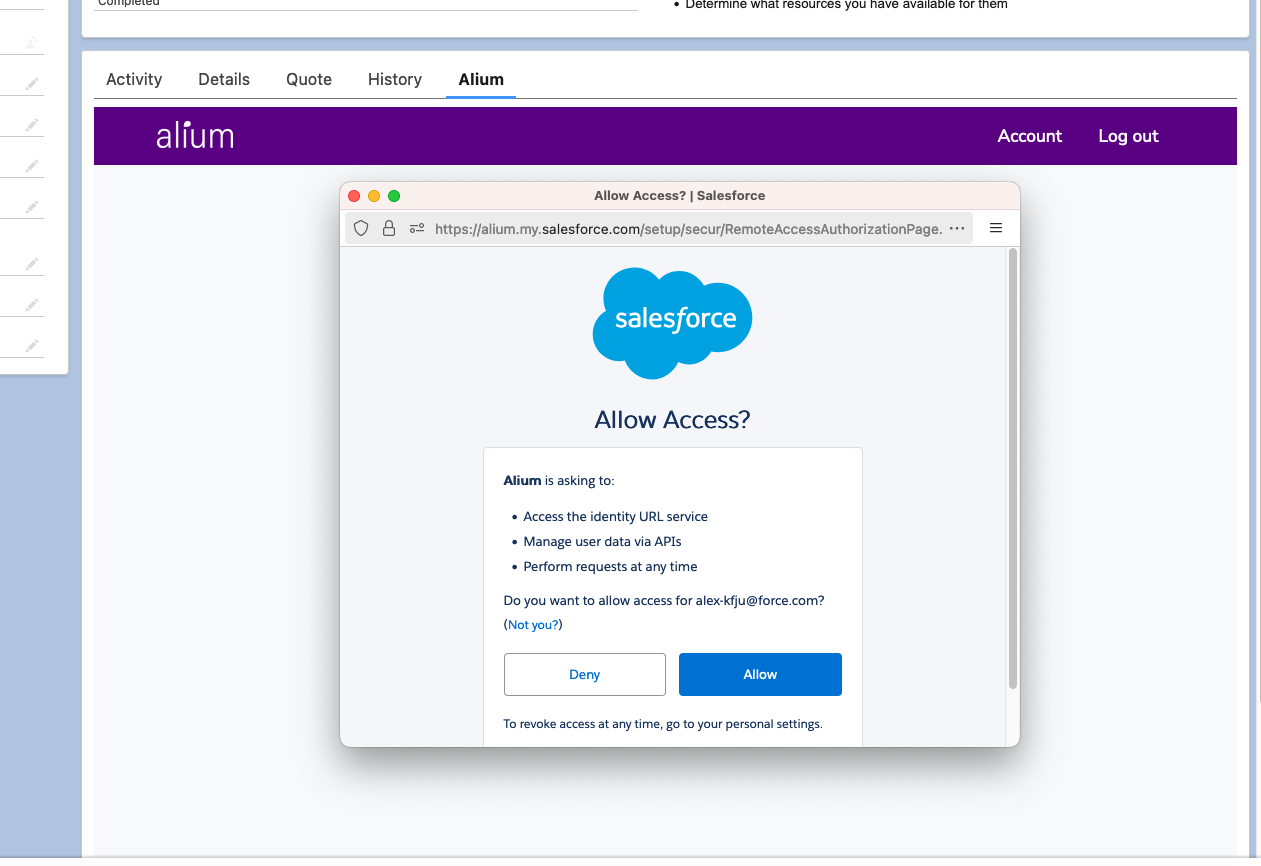
You only authorize once. After that, the panel loads automatically on every account and opportunity.
What you see
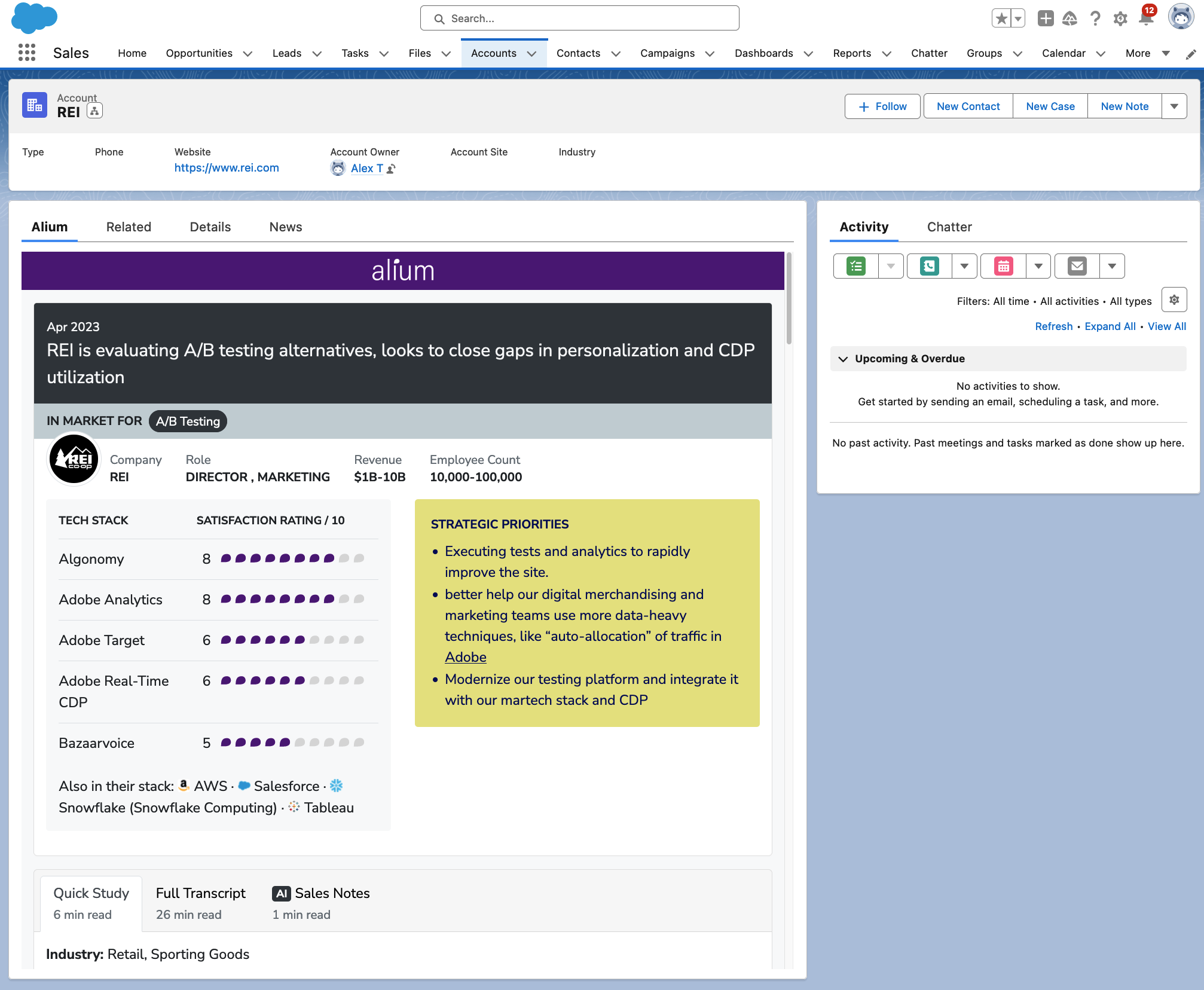
When Alium has an interview for the account, the panel shows the same intel as the Alium web app:
- A short summary of what the buyer is evaluating and their In Market For tags
- Tech stack with satisfaction ratings
- Strategic priorities
- Tabs for the Quick Study, full transcript, and AI Sales Notes
If Alium hasn't interviewed anyone at that company, the panel simply says so — nothing is created or changed.
On mobile
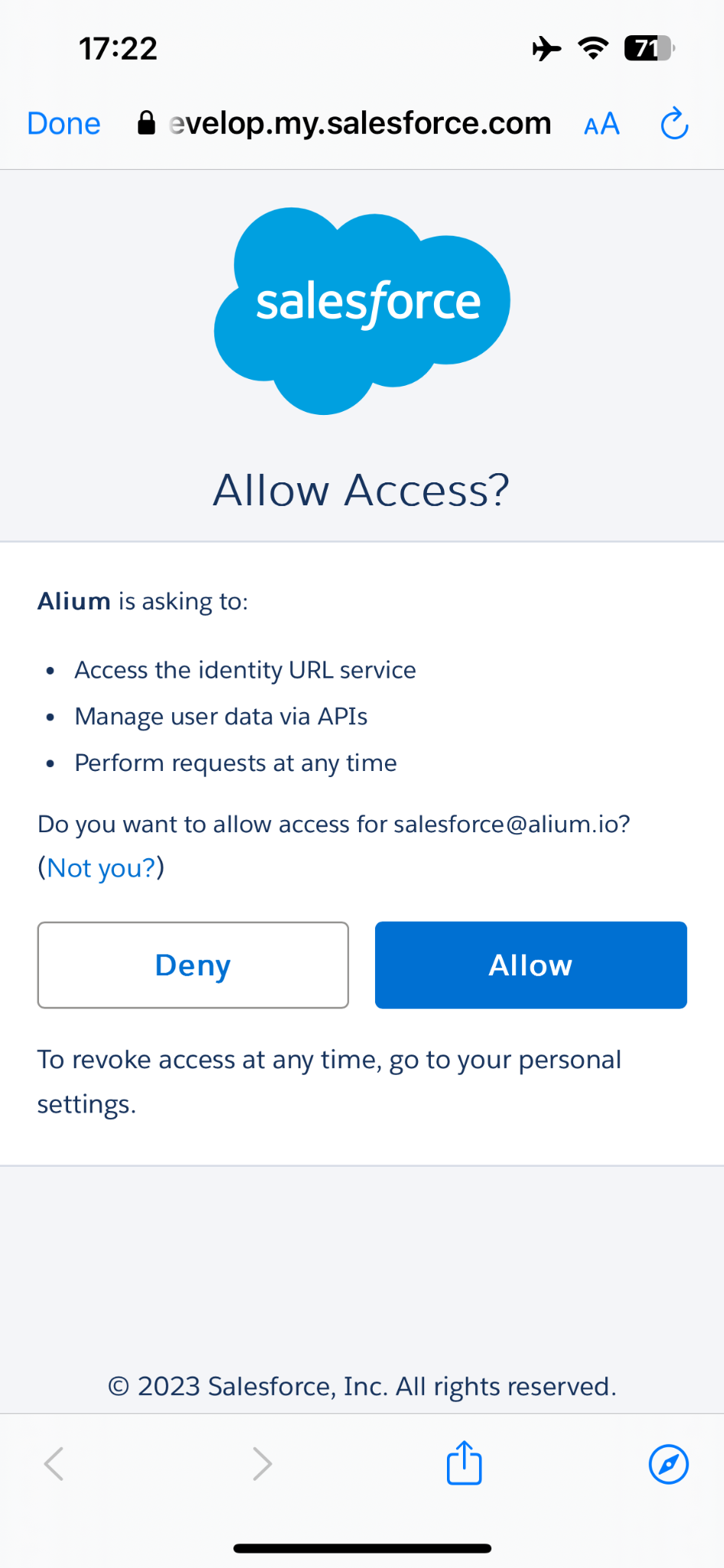
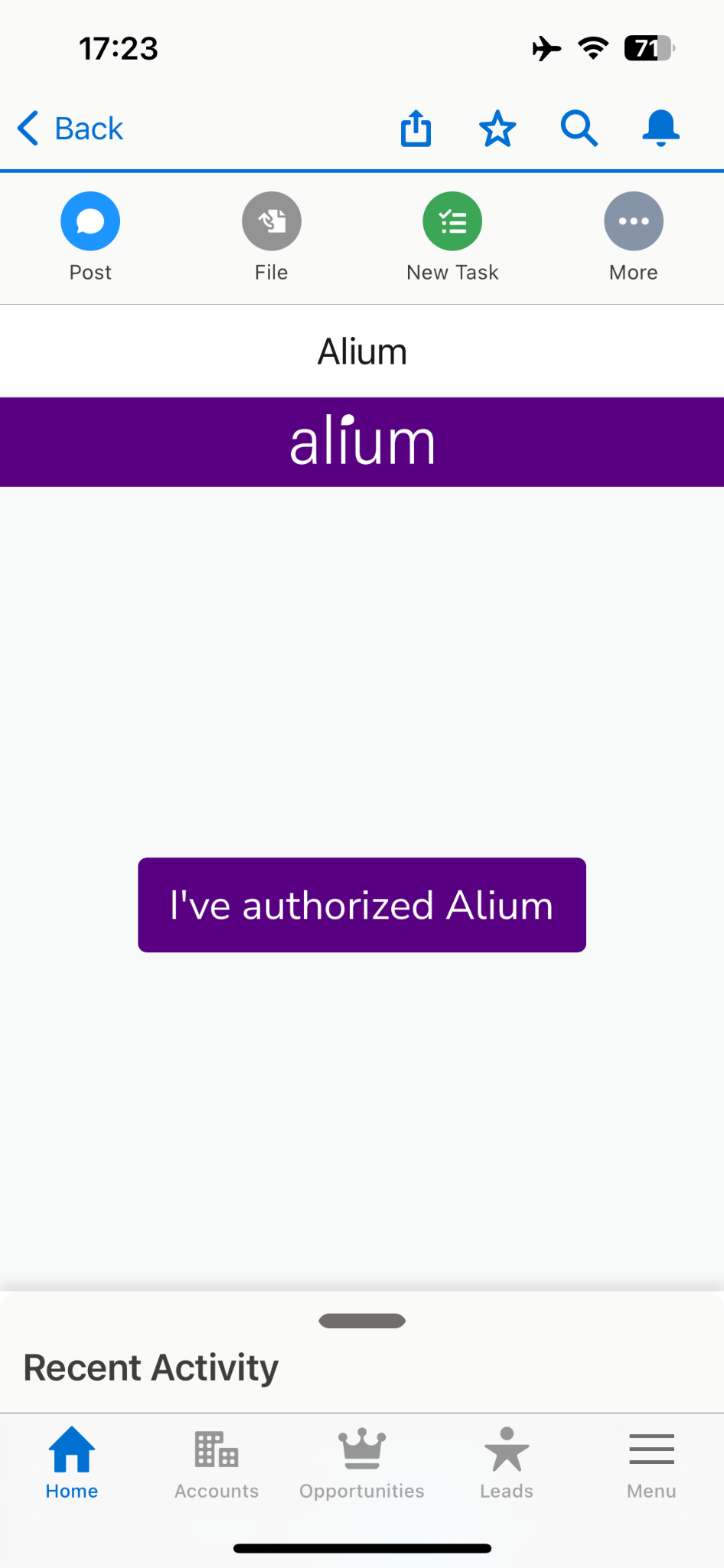
Alium works inside the Salesforce mobile app too. If you've already authorized on desktop, it just works. If you authorize for the first time on mobile, the flow is slightly different: after you tap Allow, close the browser with Done, then tap I've authorized Alium to reload the panel.
How matching works
Alium matches your Salesforce Accounts to companies it has interviewed by the Account's Website field (domain). Keep the Website field populated and accurate — it's the key the whole integration matches on.
When a rep opens an account that Alium has intel for but whose Alium Has Intel field isn't yet checked, Alium fills in its fields in the background. Alium also periodically pulls your Accounts and Opportunities to match them against newly published interviews.
Field updates are batched and pushed on a schedule (roughly hourly) using Salesforce's Bulk API, which has its own quota separate from your org's regular API limits — so keeping thousands of accounts current doesn't eat into your API allowance. When new interviews are published, a buyer's intro availability changes, or an account's tech stack is re-analyzed, the affected accounts are refreshed on the next push. After you upgrade to package v1.6, Alium detects the new fields automatically and backfills every matched account — no action needed beyond assigning the permission set.
New-interview alerts
When Alium publishes a new interview for a company matched to one of your Salesforce Accounts, Alium can email the account owner so they know fresh intel is available. Each owner is only notified once per transcript. Ask your Alium contact to enable alerts for your team.
What Alium accesses, and why
During authorization, Salesforce asks you to grant Alium three things:
| Permission | Why Alium needs it |
|---|---|
| Access the identity URL service | To read your email and match you to your Alium account, confirming you're allowed to view Alium content |
| Manage user data via APIs | To look up the Account the panel is loaded on and match it to Alium's records |
| Perform requests at any time | To periodically pull your Accounts and Opportunities and keep the Alium ... fields current as new interviews are published |
Alium writes back only to its own Alium ... fields on the Account object. It never modifies your other Salesforce data. You can revoke access anytime from your Salesforce personal settings.
Questions or setup help? Contact us at help@alium.io.