AI Assistant Integration (MCP)
Connect Alium to Claude, ChatGPT, or Microsoft Copilot Studio and ask questions about your buyer transcripts in plain English — no need to open the Alium app or know which filters to use.
Once connected, you can ask things like:
- "What are the biggest pain points buyers mention when evaluating Salesforce?"
- "Summarize what CTOs at mid-market companies say about their data stack"
- "Find transcripts where buyers are evaluating tools in the security space"
Your AI assistant will search your Alium transcripts and pull back relevant answers directly in the chat.
The Alium MCP is read-only — it can only search and retrieve transcripts, never modify anything.
Getting access
MCP access is available on the Enterprise plan. To enable it for your account, contact help@alium.io.
There are three ways to connect, depending on who's using it:
- Personal AI assistants (Claude, ChatGPT) — sign in with your Alium account through the OAuth flow below.
- Copilot Studio agents — also OAuth, but you connect as an agent seat rather than yourself, so the agent keeps working as team members come and go.
- Programmatic or agent clients — authenticate with an agent seat API key, sent as a
Bearertoken:Authorization: Bearer alm_…. This is the path for your own agents and scripted MCP clients, and it keeps working as team members come and go.
Claude
Alium is listed in the Claude connectors directory, and works with all Claude plans (Free, Pro, Max, Team, and Enterprise).
- Open Alium in the Claude directory.
- Click Connect.
- Sign in with your Alium account when prompted.
That's it. Alium will now show up as a connector you can enable in any conversation.
If you don't see a Connect button, your Claude organization owner may need to allow Alium for your workspace first.
It keeps working, so there's nothing you need to change. To switch to the directory listing, remove the custom connector under Settings → Connectors, then connect Alium from the directory.
ChatGPT
Available in beta on Business and Enterprise plans. Setup is done by a workspace admin — once published, everyone in the workspace can use Alium without any extra configuration.
See OpenAI's Developer mode and MCP apps in ChatGPT for the full reference.
Step 1 — Turn on Developer mode
Developer mode is a setting on your own ChatGPT account, and it's only needed to add and publish the app. Your team won't need it to use Alium day-to-day.
- Click your workspace name at the bottom of the left sidebar, then choose Settings.
- Select Security and login.
- Scroll to Developer mode and toggle it on.
ChatGPT flags this setting as elevated risk — that warning is expected, and only admins and authorized developers can turn it on.
Step 2 — Create the Alium app
- Click your workspace name again, then choose Workspace settings.
- Under Plugins in the left sidebar, select Apps, then click + Create.
- In the New App dialog:
- Name:
Alium(an icon and description are optional) - Connection: keep the Server URL tab selected and enter
https://app.alium.io/mcp - Authentication: leave it on OAuth — ChatGPT discovers Alium's OAuth settings automatically, so there's nothing to fill in under Advanced OAuth settings
- Name:
- Tick I understand and want to continue to acknowledge the custom-MCP risk notice.
- Click Create.
Alium now appears under Drafts in your app settings. The first time someone uses it, ChatGPT prompts them to sign in with their Alium account.
Step 3 — Publish to your workspace
- Go to Workspace settings → Apps → Drafts.
- Click Publish next to Alium.
Once published, Alium appears in every team member's Apps settings with a custom label — no Developer mode required on their side. They can select it from the + menu in any chat and start asking questions about your transcripts. See admin controls for plugins and apps for how workspace approval works.
Microsoft Copilot Studio
Alium plugs into a Copilot Studio agent as an MCP tool. Setup is done once per agent by whoever builds it, and takes a few minutes.
See Microsoft's Extend your agent with Model Context Protocol for the full reference.
Before you start — create an agent seat
Copilot Studio connects to Alium as an agent seat, not as a personal user account. A customer admin needs to create an App connection seat under Account → Agent Seats before you begin — you'll select it during the authorization step below.
Step 1 — Add a tool to your agent
- In Copilot Studio, open the agent you want to connect, or create a new one.
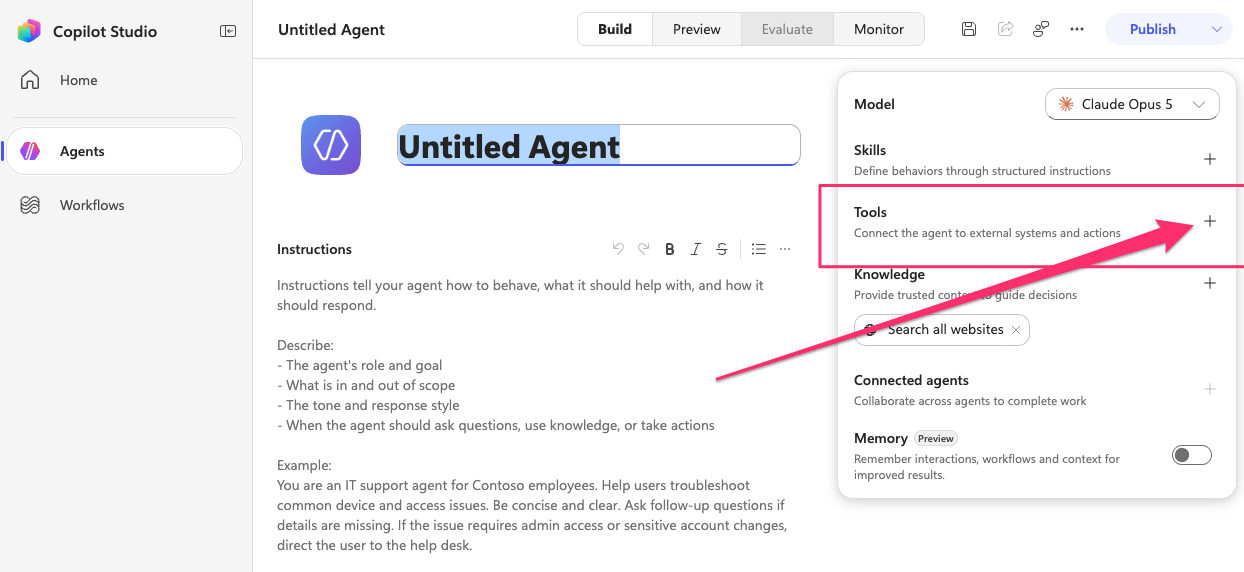
- On the Build tab, find Tools in the right-hand panel and click +.
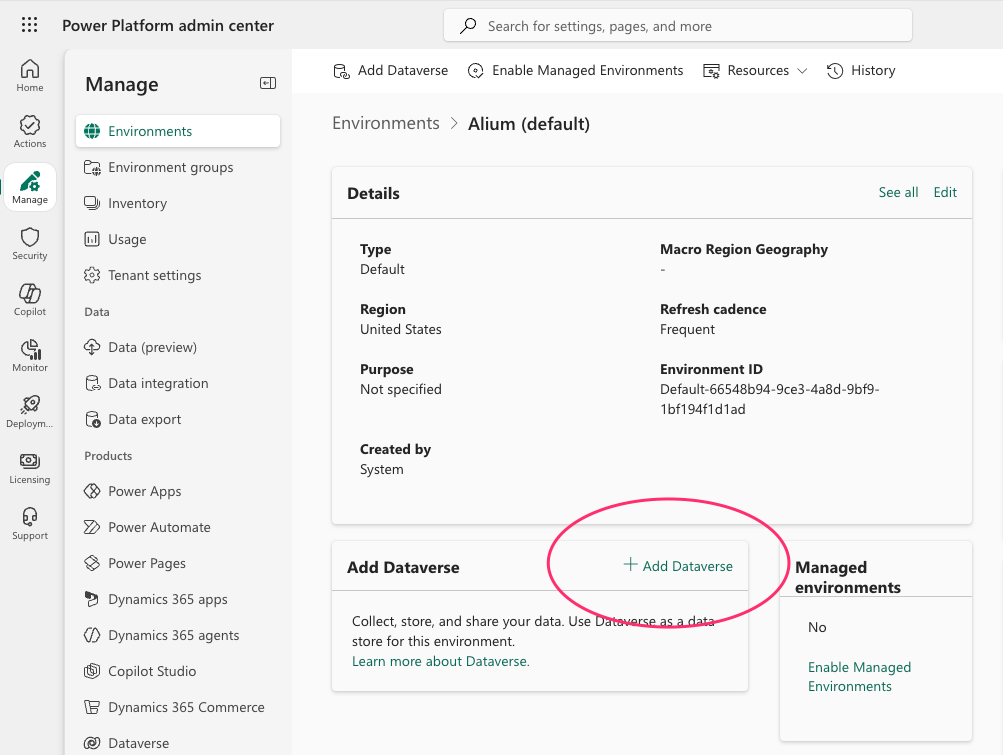
If Copilot Studio says your environment doesn't have a Dataverse, open the Power Platform admin center, go to Manage → Environments, select your environment, and click + Add Dataverse. Then come back to Copilot Studio and try again.
Step 2 — Add the Alium MCP server
-
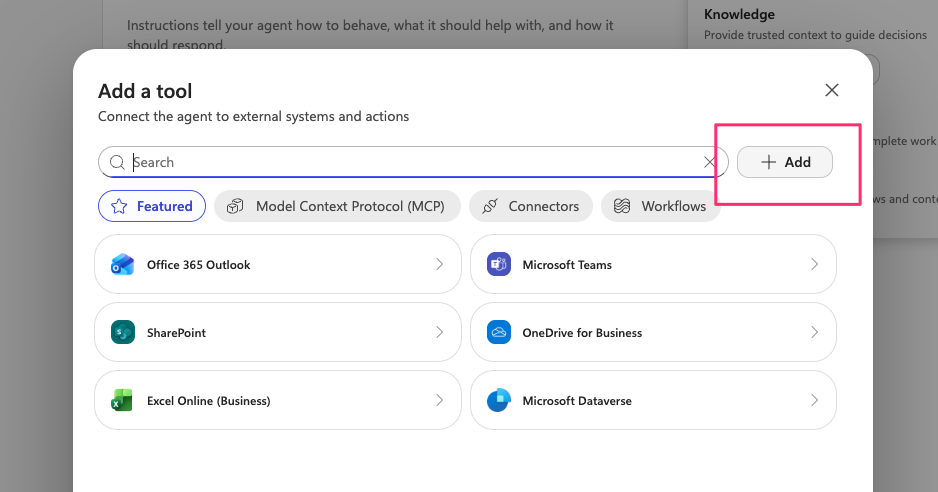
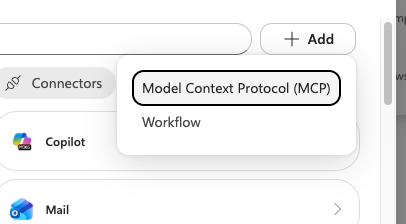
In the Add a tool dialog, click + Add in the top right, then choose Model Context Protocol (MCP).
-
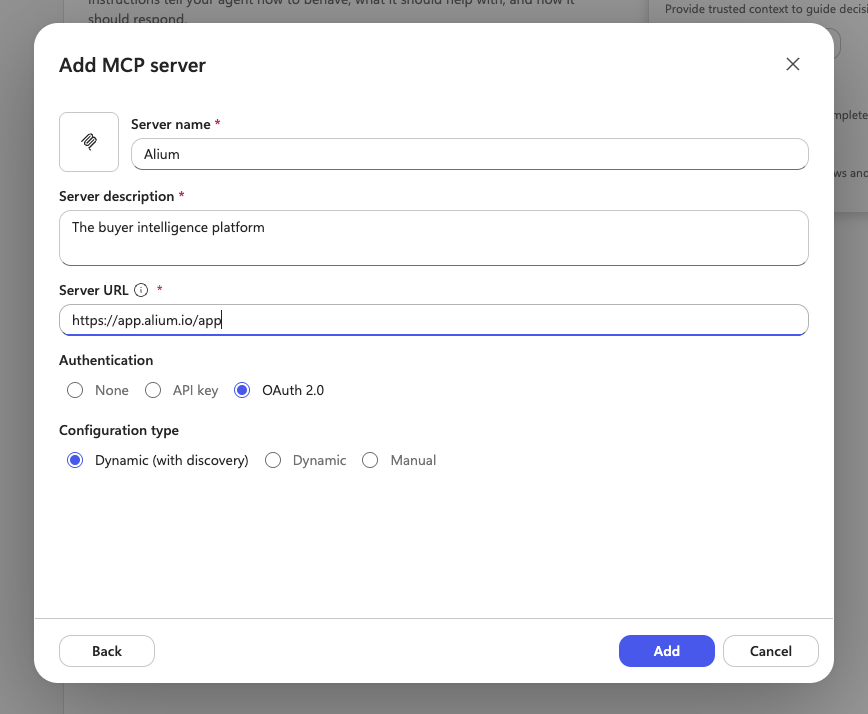
Fill in the Add MCP server form:
- Server name:
Alium - Server description:
The buyer intelligence platform(or anything you like) - Server URL:
https://app.alium.io/mcp - Authentication: OAuth 2.0
- Configuration type: Dynamic (with discovery) — Copilot Studio discovers Alium's OAuth settings automatically, so there's nothing else to fill in
- Server name:
-
Click Add.
Step 3 — Create a connection
-
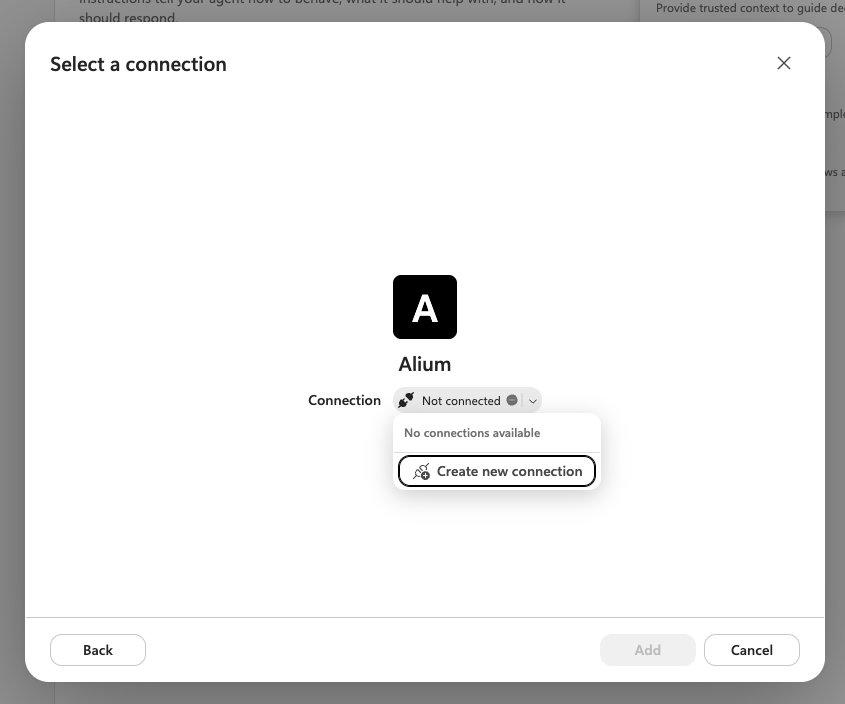
On the Select a connection screen, open the Connection dropdown and choose Create new connection.
-
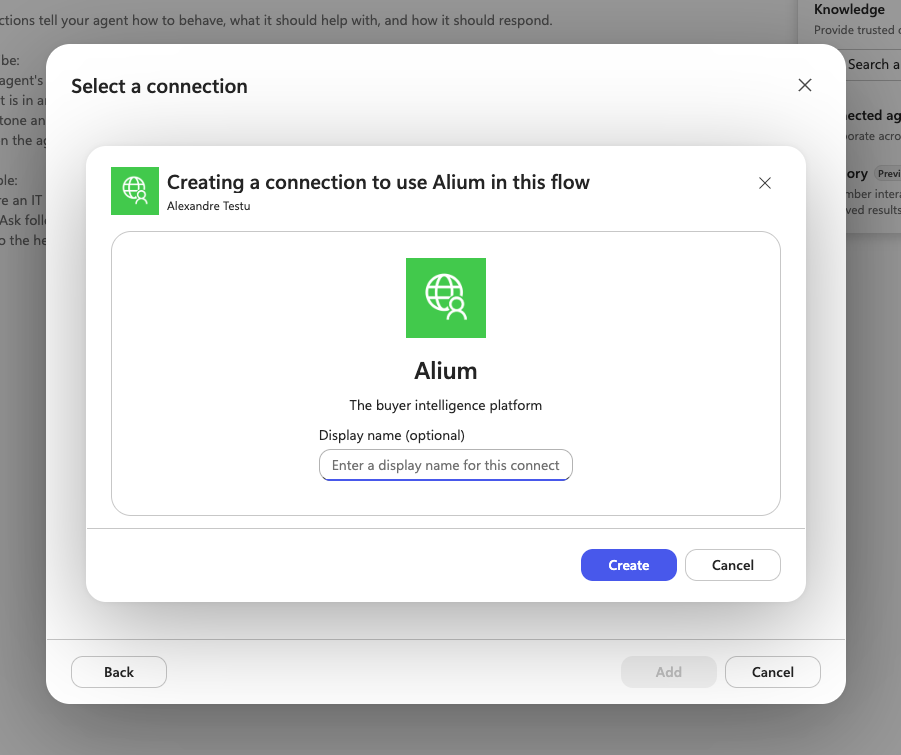
Optionally give the connection a display name, then click Create.
-
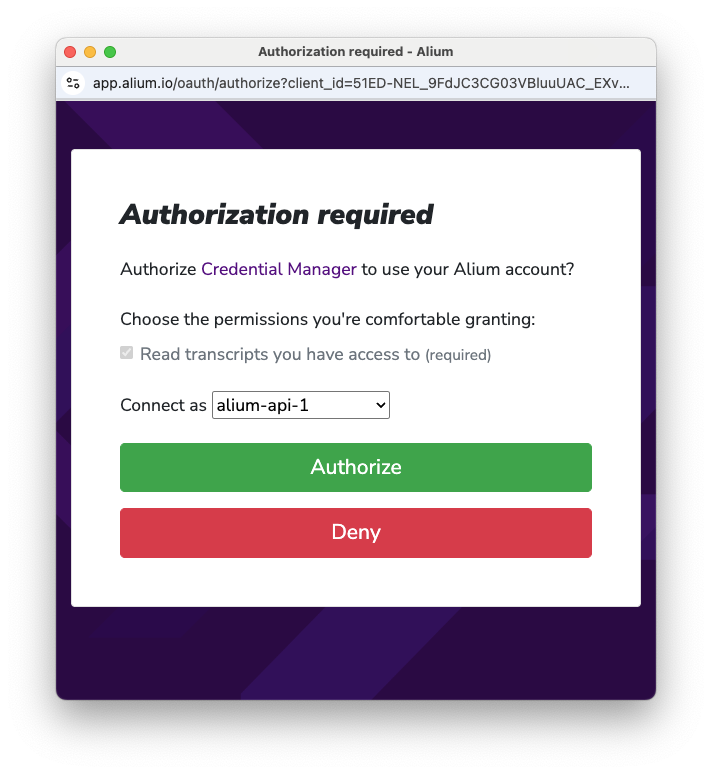
An Alium authorization window opens. Under Connect as, pick the agent seat you created earlier, then click Authorize.
-
Back on the Select a connection screen, click Add.
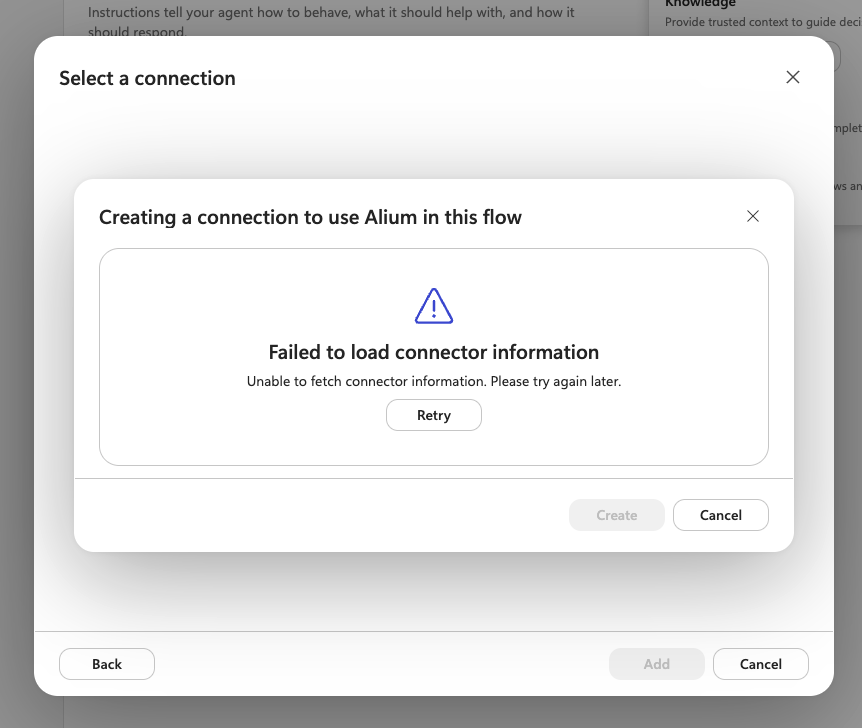
Right after adding a new MCP server, Copilot Studio sometimes shows Failed to load connector information when you try to create the connection. This comes from Copilot Studio, not Alium, and it clears on its own once the new connector has finished propagating on Microsoft's side. Wait a minute or two and click Retry.
Step 4 — Done
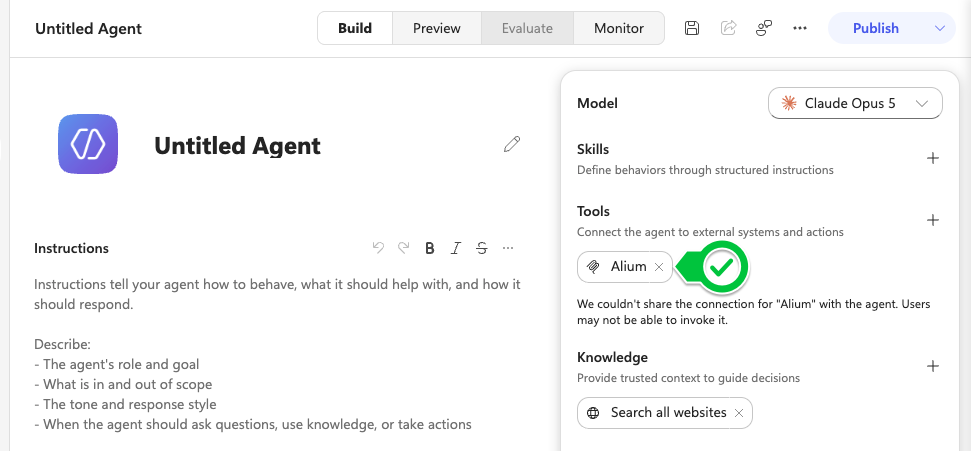
Alium now appears under Tools on your agent, and the agent can search your buyer transcripts as part of any conversation.